

Share X Videos Straight to Xsavely on iPhone (Shortcut)
Set up a free iPhone Shortcut in two minutes: tap Share in the X app, choose Xsavely, and the downloader opens with your link already searched.
iPhone can’t add websites to the Share menu the way Android can, but the built-in Shortcuts app can do the same job. After a two-minute setup, you tap Share → Xsavely in the X app and the downloader opens with your link already searched. No app to install and no account.
Set it up (about two minutes)
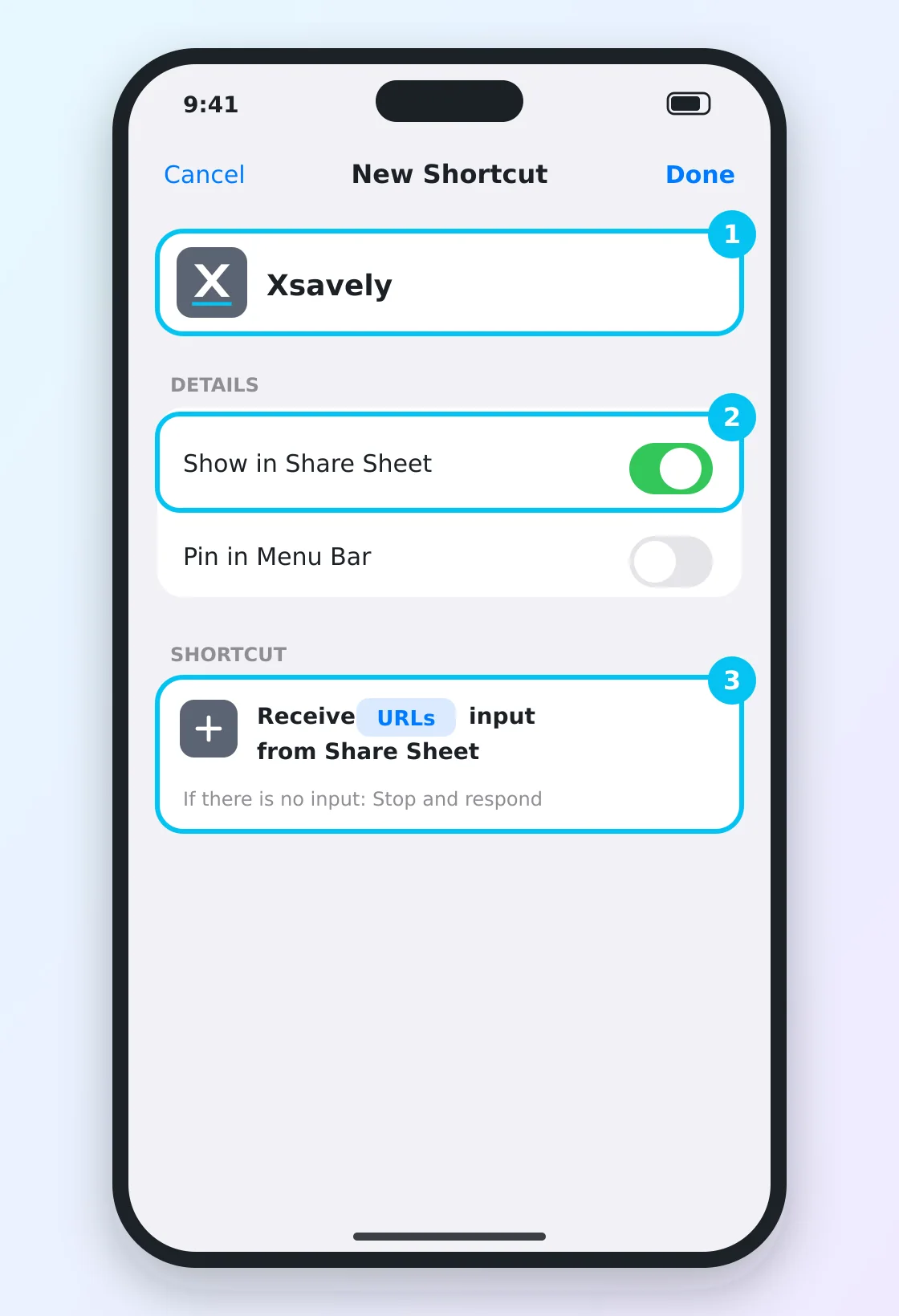
- Open the Shortcuts app (it comes with iOS), tap + to create a new shortcut and name it Xsavely.
- Tap the ⓘ (details) button and turn on Show in Share Sheet.
- A block that says “Receive … input from Share Sheet” appears at the top. Tap the input type and keep only URLs.
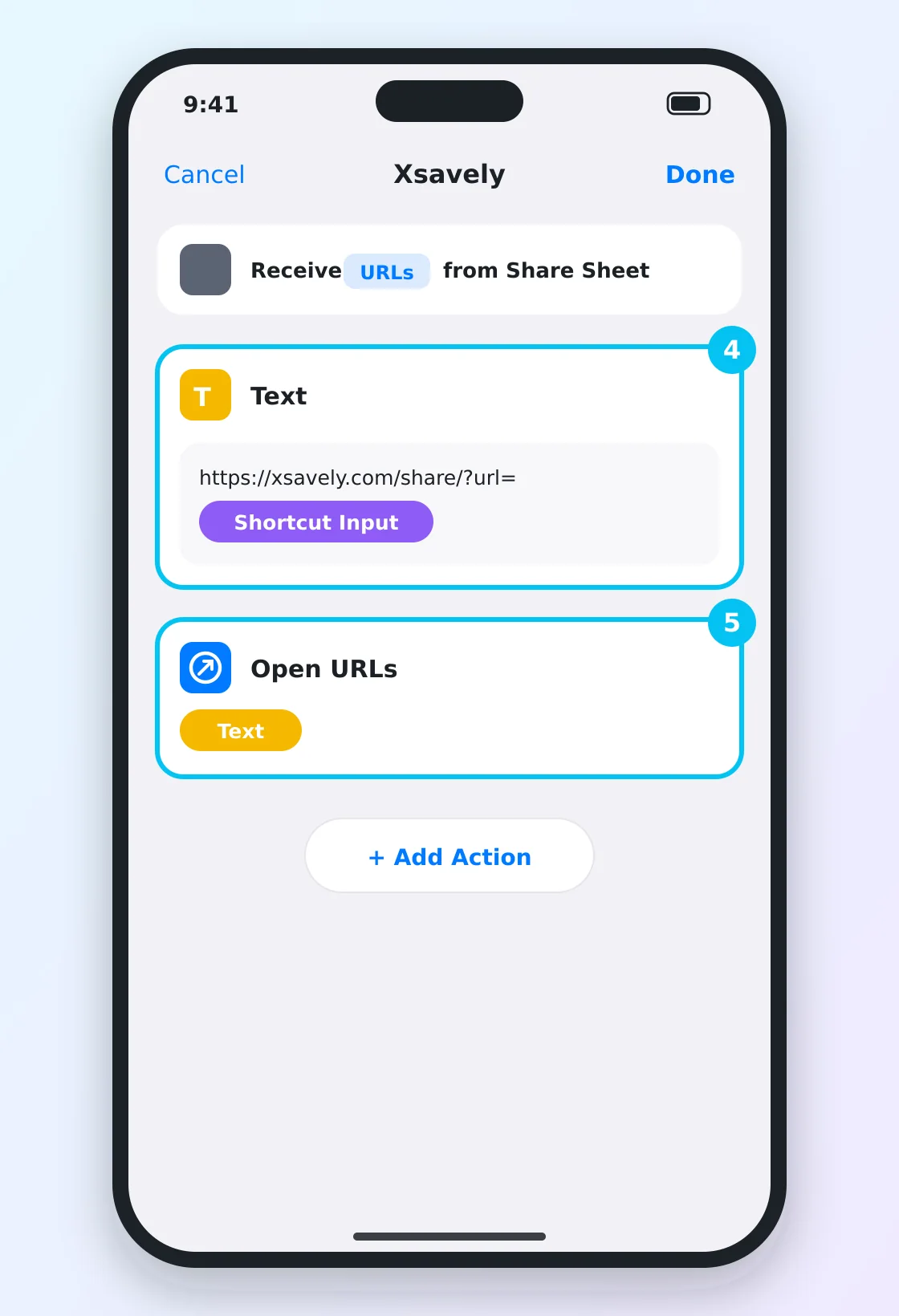
- Tap Add Action, search for Text and type
https://xsavely.com/share/?url=. Then tap right after that text and choose the variable Shortcut Input. - Tap Add Action again and search for Open URLs. It uses the text above automatically. Tap Done.
Use it
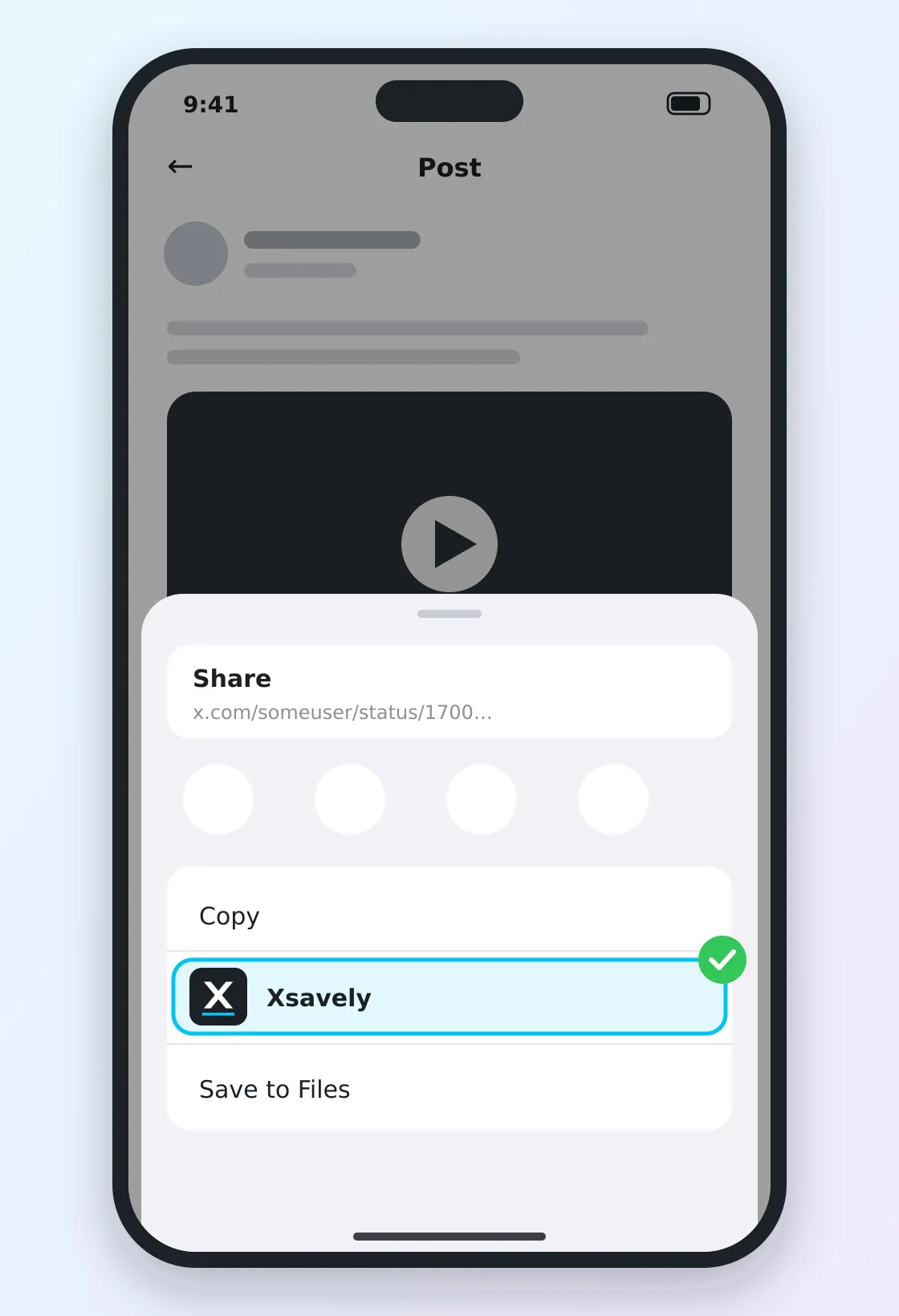
- In the X app, open a post that has a video and tap Share.
- In the list at the bottom, tap Xsavely. The first time, scroll down, tap Edit Actions… and switch it on (you can also add it to Favorites).
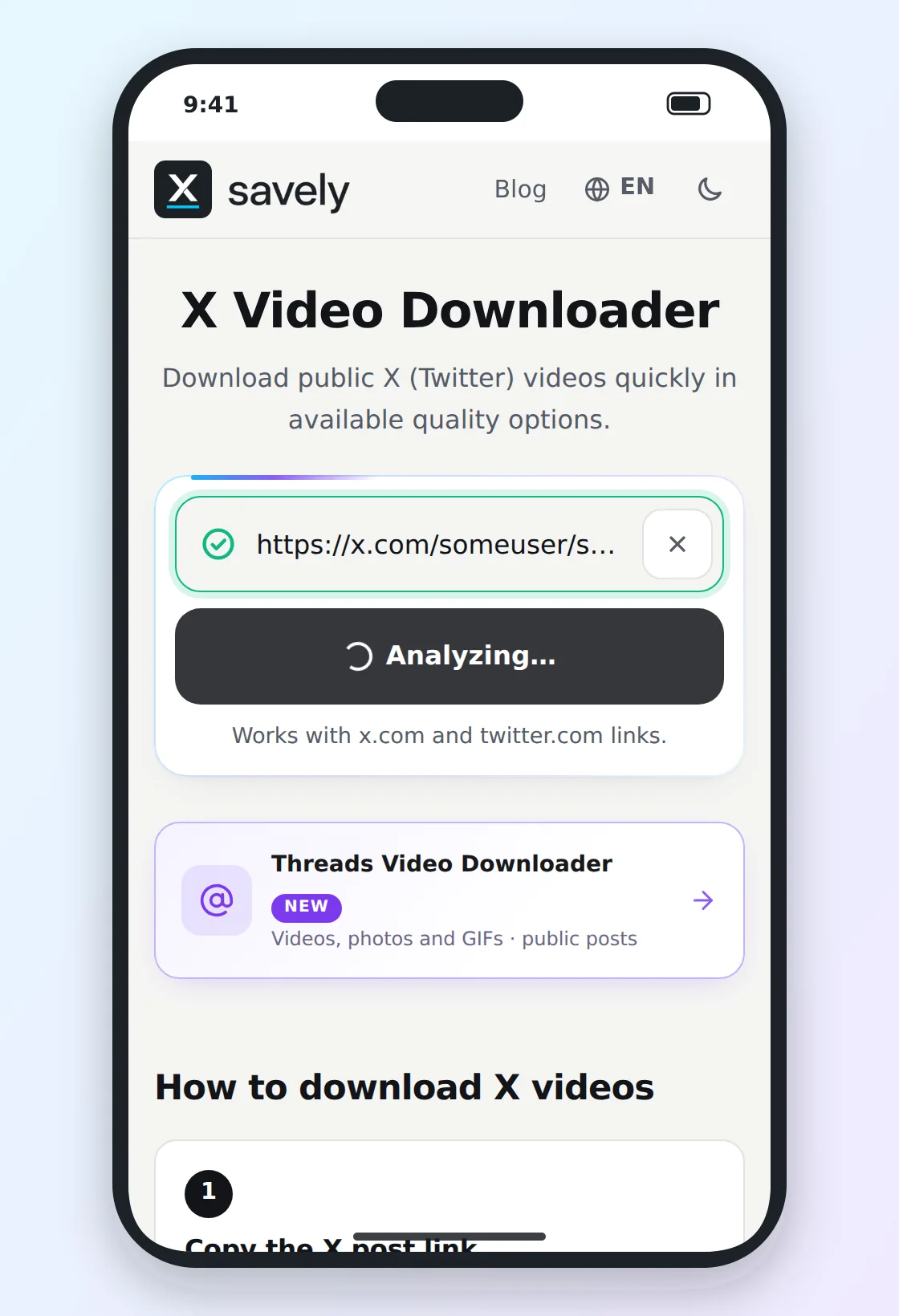
- Safari opens Xsavely, the link is filled in and the search starts. Choose a quality and download as usual.
To move the downloaded file into Photos, follow the steps in How to Download X Videos on iPhone.
Good to know
- It works for public posts only.
- Menu names and positions differ a little between iOS versions and languages, but the idea is the same.
- If iOS asks whether the shortcut may open a website, tap Allow.
- The first three pictures are illustrations of the steps. The last one is a real screenshot of the site.
- On Android you don’t need a shortcut: install the site from Chrome’s menu (Install app) and Xsavely appears in the Share menu.